Recently I had the opportunity to setup a B 450TC1 wireless modem cum router. Setting up is fairly straight forward & should not be a problem for anyone. To set up



1) We first open a browser & type 192.168.1.1 in the location bar.
You will see a similar pop up on your screen. The User Name is ‘admin’ and Password is also ‘admin’ after

2) Next you will see the following window


3) Click on the tab ‘Interface Setup’ -> ‘Internet’

4) Make ‘Virtual Circuit’ as ‘PVC 0’
5) Make ‘Status’ as ‘Activated’
6) Make ‘VPI’ as ‘0’ and ‘VCI’ as ‘32’
7) Select ‘ISP’ as ‘PPPoA/PPPoE’

8) Type your Telephone as your ‘Username’
9) And your CA No. as your ‘Password’ (CA number is your Customer A/c number found on your tel bill)
10) Next type TCP MSS = 1360 Bytes or leave it as 1400 (Default).
11) And type TCP MTU = 1492 Bytes.
12) Go to the bottom of the page & click on ‘Save’.
13) To enable DHCP go to 'Interface Setup'->;'LAN' and select DHCP option
These VCI & VPI I have mentioned above is basically for MTNL for the other ISP’s in India it’s the following
Connection Name
|
VPI
|
VCI
|
MTNL
|
0
|
32
|
BSNL
|
0
|
35
|
Airtel
|
1
|
32
|
VSNL
|
0
|
33
|

14) If you notice ‘DNS Relay’ is set as ‘User Discovered’ ie hard coded, I would suggest that it’s set to Auto Discovery.
15) To save click on 'Save' button at bottom of page.
16) Go to the ‘Maintenance’ tab & then on ‘Sysrestart’ (See Below)


17) Select ‘Current Settings’
18) Click on ‘Restart’
The basic ADSL modem setting are finished. To check if you are connected to the internet in the setting of the modem/router go to the ‘Status’ tab as seen below.

To setup the WiFi.
Open the router page as mentioned as before
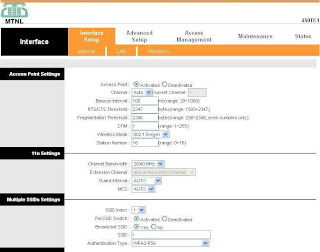
Go to ‘Interface Setup’ ->’Wireless’ (See Below)
Make ‘Access Point’ as ‘Activated’
Add a SSID (Your Network name) of your choice but not your name of address.
Authentication Type is selected as WPA2-PSK
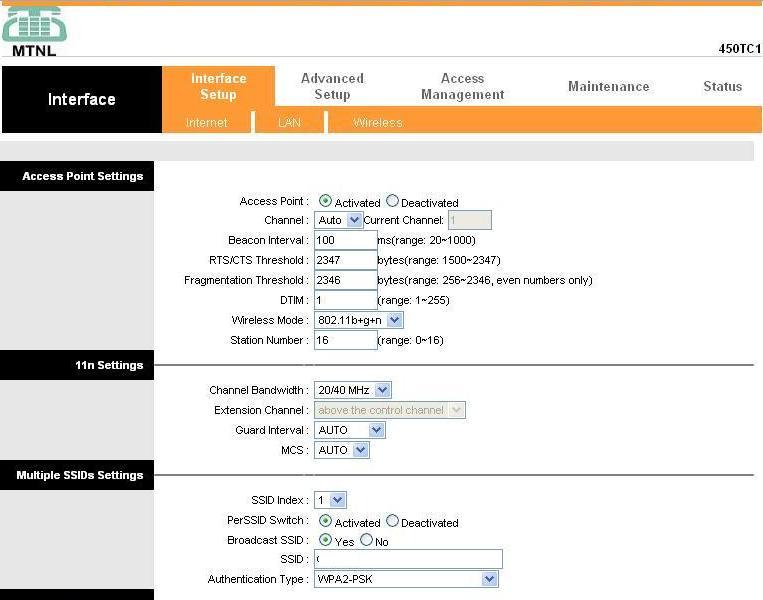

Encryption is selected as TKIP/AES
Pre shared key is the wifi password. For generating long random passwords you can use
For further security I would suggest using the MAC filters for which in the above picture
Select ‘Active’
Action should be made ‘Allow Association’. And the MAC addresses of the gadgets you want to connect to the WiFi router should be added
Lastly click on ‘Save’ then as above
Go to the ‘Maintenance’ tab & then on ‘Sysrestart’
Select ‘Current Settings’
Click on ‘Restart’
I am now presuming you know how to get your other gadgets connected to this wifi router.
I am given to understand that this screenshots & setup is similar for UT-Star wireless Type II & IV, Beetel Type A 410TC1m, wireless type B 450TC1 & type C 480TC1.

108 comments:
Thanks, I had to reset my modem yesterday as it was giving some trouble. I then used this post to set it up again without having to call or pay anyone :D
Thanks again.
can you post a working link of the firmware you are working on?
Check out the second picture, it mentions which firmware ver this unit is working on. Also check the last line of the post which mentions some probable models it shares screen shots with :)
Wow. This is even better than the guide on the MTNL site :D
Thank You :D
I cannot get through the authentication. I've tried putting different user ids and passwords but I get a pop-up window saying
"The site says 450TC1"
Plz help!
Thanks, I did these settings, but my Internet light on the modem is still off. I dont know whats with the modem. Can you help here?
Go over the settings in your modem, to check for error, if everything is ok then it’s possible that you are having a ‘line problem’ for which you will have to contact your ISP.
Hi,
I THANKS A LOT for this. You are the best. After making many complaints with MTNL nobody bothered. But your instruction helped. After following ur instruction the internet was working like a jet. Thanks Thanks.
Please keep up the good work.
Merry Christmas. :) :)
Thanks Socrates for your step by step screenshot guide ... it really was seamless setting up the system...
1 more problem though... I configured the MAC address of my three laptops in the modem settings, but even 2 laptops are not able to connect to the internet simultaneously... Is there a limitation on the number of laptops that can simultaneously connected to the internet through this connection? is there a work ?
-- Sabyasachi Ghosh --
Thanks... my router was not working properly.. I followed your screenshots and now its up and working as expected!!
u have given great info. , but when i change my SSID from MTNL (default) to desired one , my compuer disconnects and although it can discover the ssid name but there is a red cross beside it ( in connect or disconnect wizard), stating - not configured to connect to the "xxxx" network. on diagnose i get contact to manufacturer or see settings , pls help- MTNL guides dont know and they dont even pick up the calls............pls
when i connect my beetle 450TC1 modem it show 4 lights on "POWER, DSL, LAN1, WLAN" when i open this 192.168.1.1 page i made all the changes upto step 11 as i click on save button is star showing "Connection closed by remote server"
can you help me configuring my wifi modem..
Had you tried any other changes in settings before you tried this attempt, I ask this as it’s possible that some changes made elsewhere could be throwing the spanner in the works. I suggest you restore the unit to factory settings using the reset button & redo the configuration. I presume you are on MTNL or BSNL using ADSL technology.
I have TP-LINK TD-W8951ND router. I want to use it using LAN wire for desktop and wifi for my tablet. I tried using the above steps but not able to connect. Please help me out. Thanks.
This was written specifically for the make/model mentioned in the title on this blog. Though the basic fundas are same every manufacturer has a different user interface as I have never setup this make/model you mention, maybe you should refer to the ‘support’ section of the manufacturer’s site for this particular model. You should find the ‘User Guide’ & ‘Quick Installation Guide’. Hope this helps.
Hello Socrates, The user id n password as admin is not working . What can i do?
1)admin is all lowercase.
2)First are you having exactly the same model?
3)Has anyone before you accessed the units setting page, for it could be possible that it been changed by that person.
4)A work around to this is reset the unit to factory settings & try again.
Hi, I followed all ur instructions. However when I pressed connect I was asked for a network security key... how do I fin out what that is?
‘However when I pressed connect ‘ where is this button ‘connect’? If you have followed all the steps correctly then you have to enter the password you entered for WiFi called ‘Pre shared key’ shown in fig #9 in your wifi device eg laptop etc
Can we change encryption to WPA2 Enterprise ?
Usually its not used for home use but a v techie person could try it even though I have not done it myself. See
http://www.enterprisenetworkingplanet.com/netsecur/article.php/3916561/Implement-WPA2-Enterprise-Encryption-on-Your-WLAN.htm
http://www.privacywonk.net/2010/10/security-how-to-wpa2-enterprise-on-your-home-network.php
how can i connect samsung tab???whenever i connect to my mtnl wifi modem 450TC1 it shows obtaining ip address but after sumtimes it doesnt connect with my any mobile device it stops automatically.
plz revert me back for any SOLUTION.
thanks a lot for the post. It saved a lot of my time,energy and money.
thanks a lot for the post but i have a problem....the internet is working but the wifi is not...i have already added mac address for the devices i want to connect to this wifi..but still its not working..!!
First try to get your wifi connection working w/o any security (for a few minutes). Once that is functional then enhance your security one at a time.
could u also post a blog on setting-up-of-mtnls-b480TC1
The interface maybe a little different from this model but the fundas should be the same so I dont think one should have any difficulty setting up that model. :) In fact the MTNL site uses the same screen shots for both model's setup
actually i dont know how but my wireless option in the interface setup page just disappeared and my wifi is not working at all can please help me out here??
Hello there,
Can you please tell me how I configure my mtnl wifi moden to DHCP so that I don't have to enter an IP address everytime I connect a wireless device.
DHCP in LAN is enabled. But still, I have to insert IP manually in Desktop, laptop and phone.
If you notice in pic 5 in ‘Get IP Address’, ‘Dynamic’ is selected that is DHCP, see point 13 in the article. Found under the tab ‘Interface Setup’ -> ‘Internet’. In your Desktop, laptop or any other device DHCP should be selected & saved.
Thanks for the quick reply. But it is already selected to dynamic. But still I have to enter ip addresses in devices to use.
Check out the first pic at http://socrates0.blogspot.in/2011/01/how-to-configure-netgear-wireless-n150.html . i am confused if you notice the pic when you select “Obtain an IP address automatically ” you cannot add an IP address manually!! How do you manage it??
can you give to set up and change password for modem 480TC1 given by MTNL?
I could KILL YOU FOR THIS! Awesome. Super awesome. Thank, Thank, THANK YOU! After searching for 3 bloody hours, I came up with a solution that no one, including dear MTNL could not give (the moment they heard I have a MAC, they are like, MAC, baap re!). And since my entire project was pending, my net connection was of utmost importance to me. BLESS YOU. BLESS, BLESS, BLESS YOU!!!!
Buddy I mean on my PHONE. When I connect to wifi I have to disable DHCP in my phone and set it to Manual and then enter all ip address, gateways, DNS info by myself on my phone. Without that it won't work.
Lol you didn’t mention that clearly in your post. Yes there are many reports of people having to do what you are doing to get internet working on their phone. Try a factory reset (but take a backup of ALL your data as it will be lost) it could help (it has helped in some cases) if that does not help then contact the service center of your phone manufacturer, to see if they have a solution or a patch maybe be the last option.
can i set up tp link W895IND in the same way ??? i am having a hard time ,got this router recently but still couldn't get it to work :/
You haven’t stated who is your service provider. The setup shown here is for ADSL tech. If that's what your ISP uses then it should work. Also even though the make/model is different from what's shown here the fundas are the same. Only bear in mind the VCI & VPI I have mentioned above is basically for MTNL for the some other ISP’s in India. Also check the Tp-Link site I have heard their user guides are informative may show you how its done. BTW how much did it cost?
check out http://www.tp-link.in/products/details/?categoryid=219&model=TD-W8951ND#down
i am an mtnl user and i bought it from flipkart for 1500 ... i haven't configured it yet.. will try tomorrow thanks for replying :)
bro i am facing a lot of trouble configuring tp link w895ind and in the status bar it shows "ip address,subnet mask,dns server" blank and the line is down :/ what to do??
IP 192.168.1.1
Subnet Mask 255.255.255.0
DNS 59.185.3.10 & 59.185.3.12
you can also use other MTNL DNS but they are rather old
MTNL DNS
Mumbai
59.185.3.12
59.185.3.10
203.94.227.70
Delhi
203.94.243.70
59.185.0.23
59.185.0.50
In Wireless SSIDs seetings if I change Authentication Type from WPA-PSK to WPA2-PSK then wireless is not working on MTNL router. Do I need to change any other setting to make WPA2-PSK work? Apple suggests that for ipad, router settings should be WPA2-PSK to get continuous wireless connection. Pls help.
I do not have much experience with Apple products so don’t want to comment on them. Some question come to mind.
Under ‘Multiple SSID settings’ these settings should be
SSID Index is 1
Per SSID switch is ‘Activated’
Broadcast SSID is ‘Yes
Also ‘Wireless MAC Address Filter’ is it ‘Activated’ if so then Action should be ‘Allow Association’ & you will have to enter the MAC address of your gadget here.
SSID Index is 1
Per SSID switch is ‘Activated’
Broadcast SSID is ‘Yes'. Wireless MAC Address Filter is Deactivated. By default Authentication Type is WPA-PSK. When I change this to WPA2-PSK then internet is working through ethernet wire but wireless is disconnected. How to make wireless work using WPA2-PSK settings?
Thanks in advance.
I suppose your last post is still referring to your Apple Ipad .
a) do other wifi gadgets connect with WPA2-PSK or
b) Is it only your ipad.
If the (a) is true then reset your router & do the settings from scratch (just to be sure). And try to connect again with non apple products (at first). If they don’t connect then it’s a router problem.
If (b) is true then it’s a probably an incompatibility problem between your router & ipad. But to be doubly sure try to connect on somebody else’s router of the same make. If no success then incompatibility could be a worst case scenario, it happened to me in ‘How to configure Linksys WRT 120N wireless router’ where the router & a laptop would not connect to each other but other gadgets were connecting, this was cured only after the Linksys router firmware was updated.
So I suggest you check if there is a firmware update is available. If so, then update. If that still does not work then you will have to contact the unit manufacturer.
Dude ,Man I can not find any ads to click,as I don't know what a big favour you have done to me !!thanks a a ton!!
hey !!! i am having a little bit of trouble , dnt know how to solve the issue ..... soo please help !!
i have no WIRELESS option in interface setup option .
i have checked everything else , it looks pretty legit . please reply .
Hello socrates,
Im having a peculiar problem. Phones are able to detect my SSID but its not visible on my laptop, I have to use a LAN cable. Can you suggest something to fix my problem ?
Hi Socrates,i am using beetel 450TC1 on mtnl. Internet works when connected via LAN but the SSID is not visible on any device (laptop or phone). The WLAN light on the modem is stable and green and I think all the modem settings are fine as well. The "Broadcast SSID" option is set to "Yes. But the SSID is still no visible.
Has ‘Access Point’ been‘Activated’? If not do so & check. Go to ‘Interface Setup’ ->’Wireless’.
Make ‘Access Point’ as ‘Activated’. Also check that the 'Wireless Mode' (b/g/n) is the same as your wireless devices. If you have devices that run on different mode then select the appropriate mixed mode else keep it on the correct single mode which is appropriate for your devices.
Hey.. Wonderful blog. However i clicked on reset factory settings on the settings plage in the short amount that the internet light on my router did work. All has been lost :( i tried to reset the small pin on the router itself but to no avail. Any clue how to get it up??
When you click on ‘Reset Factory Settings’ all settings you have entered will be lost. You will have to reconfigure the unit from scratch.
You are awesome dude.
Thanks a ton.
Your instructions are far better than the instructions given on the website as well as the installation CD.
Your screenshots were really helpful. I spent almost 3/4 hours beating up my mind and googling to setup my wireless router and finally got your blog which made the setup successful withing 5 minutes.
Great one dude... this is a awesome information you have created. Thanks a lot buddy
I m using mtnl wifi . Nd my router is of bsnl. My prblm is dat in my pc , net is working well bt wen i ON wifi on my android , it shows connected and strength excellent bt still i m not able to access the internet. Can someone help plzzz. I Hv to modify network config in mobile also what? Any help would be appreciated.
Did you follow the instructions above to do the setup? If so then have you entered the MAC address of your phone in the settings of your wifi router?
My power dsl and wlan lights are on....but internet line is not getting on....what could be the problem ? Please help
Is the light not coming on at all or is it blinking.
First try switching off both PC and modem wait for a few minutes then try again. If that does not work then
Second check your line stats (snr & attrnuation), also check if you have a parallel line & also if you have noise in your tel line. If yes then you possibly have a line problem so you should lodge a complaint with your ISP to sort it out.
Yes the light is not coming at all...it was working very fi9 2 days back...but I dnt knw wat happen all of a sudden
It could be a MTNL problem, many members on IBF have mentioned problems in the last few days. Guess you will have to call them
Hey I would like to know if its possible to add more than the upper limit of 8 MAC exceptions. Even by changing firmware ?
Depends on the third party s/w which you intend to install but make sure its compatible with the h/w of your unit
i tried typing the username and password as admin but im still not getting through. it says "server says: DM 856W". what should i do pls help
Looks like a password has been set. I suppose the unit you have belongs to the ISP, call them & let them handle it or reset the unit to factory settings but then you will have to enter all the details again. :)
Thank You soooooo much... You saved my life today !! Thanks a ton!!
Pooja
Thanks a lot, people like you are a great help to noobs like us..:D
Thanks...worked like a charm
GOD BLESS YOU !!
You have saved me a lot of trouble.
I have to manually add the DNS Server address in each of my devices.
Later, I got to know from your forum that DNS Auto should be enabled.
Many Thanks
can i take setting bakup?
Yes you can. Check the 'Maintenance' tab for your requirement
Hello Sir I have upgraded my 450tc1 firmware to TM4-0q-25.Internet is working fine but it is showing some raduis server settings in wireless option and by default wpa2 enterprise is selected. I am not able to change that Please Please help me to access wifi in my phone.I am using mtnl broadband at my home
Your modem I presume is rented from your ISP then why did you get into updating the firmware? Did you check that this update was for your particular model AND is compatible for home use? Frankly I have never updated the firmware unless there has been an issue with it. You have to use ‘Authentication Type is selected as WPA2-PSK’ ONLY and not the one you mentioned. Only option left now is to reset it & you can access the option I have mentioned above, else complain to your ISP & hope they will exchange it without a murmur.
Bro cn i increase my mtnl 450tc1 modem wifi range??? Whenever i move to another room wifi signals disappear pls help me out with the best way
In theory you can, but in practice most modems cum wifi routers are set to 100% signal strength, you can check that out on your modem. Placing of your modem is also important, try to keep it central to your house, if that’s not possible then think of getting a new piece from the market. There is no hard & fast rule it all depends on your house layout & it’s difficult for anyone to suggest unless the signal strength at different locations is checked & the type & number of obstructions are known. After this if you want to get more range with or without the current model you will have to use range extenders but remember that placement is important.
Hey guys me and my brother share WiFi. He has gone to Mumbai now, yesterday I reset my router to factory setting now the said is showing MTNL and I don't know the wpa password...I can neither access the wifi router since we stay in different flat.What should I do
If you don’t know the wifi password then ask your brother for it. If not then set a new password & put the same in all the devices that are connected to the wifi router.
sir u r amazing e saver . Thank you so much !!!! this guide is a life saver .Thank you so much :D
Hi. My smart phone and laptop connect to the Internet via 450tc1 but after about two minutes I'm not able to open any pages on my laptop even though the wifi shows connected, but no such problems on the smart phone. If I restart the wifi on the laptop, it again connects to the Internet but stops after there is a pause in data transfer. Please help.
Hmm two things come to my mind
1) This happened to one HP laptop with a friend of mine. Are you having both Bluetooth AND wifi on at the same time? If yes then switch on Bluetooth ONLY when needed else keep it off this worked in my friends case.
2) You have not mentioned the name of your ISP. What DNS are you using on your laptop? Is it the one provided by your ISP? See fig 3 at http://socrates0.blogspot.in/2013/07/seting-up-tp-link-td-w8968.html & change your setting as shown in the right side fig. Also you can use OpenDNS/Google/Comodo DNS
Bluetooth is switched off. Using macbook pro 13.
ISP is MTNL Mumbai.
DNS presently
59.185.0.23
59.185.0.50
You've suggested settings for TP link modem but I'm using a MTNL supplied 450TC1 modem.
The link I gave you was of a TP-Link modem but the fig I asked you to refer had nothing to do with the modem at all but DNS entries in a windows based computer. For MTNL use 59.185.3.10 & 59.185.3.12 they are newer DNS servers
Made the changes but no difference. It still does not open any pages after about five minutes.
Hmm the fact that it connects but becomes 'inactive' after around 5 mins means that it might be going into sleep mode due to inactivity (faced this problem in a HP laptop). This is a guess coz I try to avoid Apple products so my experience is limited. Please check the properties of the LAN card & Wifi on this unit it might throw some light on this problem. Hope this helps.
Hi,
I am using Beetel 450BXI modem for my MTNL connection.
I am trying to open the main page using http://192.168.1.1 however the message displayed on browser is "Internet cannot display the webpage."
I am also facing an issue, that I am able to connect only me personal laptop on this modem however I am not able to connect my Android devices as well as my Office laptop. It mentions that there is no internet connection.
Pls help in resolving these issue.
Thanks.
Hey I have just bought a new chrome caste but I am not able to connect it with my router it is not finding my router please help
I have activated the Mac address filter but I dunno what to type in the address please help
Than ks
Hi dude. Firstly, thanks for all the amazing tutorials.
how do i enable pnp in this particular router.
thanks in adv
Hi facing trouble in iPhone 6 and mtnl router as repeated disconnectivity
Are you sure that it’s only your iphone that’s facing the disconnection problem what about other devices connected via wifi or otherwise to your modem/wifi router? If its only this phone then check if its MTNL supplied unit B450TC1 ? if yes then you are out of luck as many iphone owners face this & many have reported to have solved it by replacing their modem/wifi router.
Yes it is the same model and also ipad gives this issue
I have tried all permutations what give on YouTube but no luck
Rest all devices work well
My i-gagets work well in office with Hathaway routers
Suggest me how do I rectify this issue and suggest which mtnl modem and router I should ask from the service provider
My last sentence in my above post dated Oct 23rd 2015 has your answer. I am not sure what MTNL will have in stock at your end if you insist on their CPE than you will have to meet the sub divisional engineer for your area at your exchange & explain your problem & hope for a solution.
Thanks dude... Helped with my MTNL connection.. They made me wait for 3 days for this, your guide set me up in 3 mins..
God bless you man! Saved me the trouble of speaking to the MTNL help desk, can barely understand them.
Thanks for the help :D
Hello can u also tell how can i use voip or iptv port for internet connectivity.
@Dark Knight Sorry I have no experience in that field
I just bought Netgear Wifi Router from online portal it was working fine but post 2 weeks i see bad signal strength i believe something wrong with connectivity update spoke to latestone.com cs team they told me to follow guidelines nothing worked.
Hello Sir,
"Whenever I am opening the page 192.168.1.1 & login into by entering username as admin and password as password it allow be successful login but I am seeing only the Status page having various information about the beetel ADSL 450TC1. But not getting the pages like you mentioned interface, maintenance,security etc.
But earlier i was seeing that pages when I have the connection of airtel. Since I had disconnected the services from Airtel, not able to see those page & even not able to reset any configuration for any other services.
Sir this is my email id atul.dongre.it@gmail.com please revert me solution if any so that I can sent you the screenshots actually what I am seeing while login."
@Atul Dongre You can login using ‘password’ as the password? If so then it must be a later ver to what I had used in the past. You say that you have discontinued Airtel services but not mentioned what ISP you are using now. Also if your current ISP is using that same ADSL+ technology? I would suggest that you use the reset button on your device & set it up again.
Hello socrates
Thanks for writing such a wonderful guide for setting up the router. I am having the problem of internet disconnecting with the WiFi still connected on my oneplus one but not so on my laptop and my mipad.Each time i need to reconnect to the Wifi on my Oneplus One to access the internet. I have the MTNL 450TC1 modem. I have put in the settings that you have mentioned.
any Help is much appreciated !!!!
First thing to try out is whether this phone does not disconnect from wifi on another wifi network which uses some other make/model wifi, if the problem persists then it’s a problem with the phone if answer is no then the problem lies at your end. Are you sure that it disconnects only from your phone because there can be a time lag in displaying connection & disconnection in the icons on our devices. I would suggest is when you cannot browse or use the internet on the phone check the same on the laptop & Mi Pad (ignore the icons at this stage) it’s possible it’s disconnected from all devices but the display icons may not be showing that. If this is the case then it’s your net connection that’s at fault not the wifi part of it. If this is not the case then there could be some incompatibility between the wifi router & your phone for this try updating the drivers of the modem. I had once faced a similar problem with a wifi router & a particular laptop model which was solved after I updated the derivers of the router.
Can you share the router firmware update link if possible. MTNL 450TC1.
Thanks !!
Yeah the internet is functioning on the other devices while its not on my Oneplus. And yes the the internet functionality is absolutely fine whilst connected to other modems(TP Link and D Link). It sure does point to the incompatibility between the wifi router and phone. Plz share the link to the firmware update.
Sorry for the delay. I have absolutely no idea about s/w updates for this model, if its a MTNL unit ask them if they have any update given by the supplier (I doubt it) or tell them about your predicament & ask them to replace it with another unit
Any clue how to configure netgear router with MTNL WiFi modem
Which Netgear model
I wish to buy a WiFi router to replace the MTNL one i have. Please suggest a good model that can work with the MTNL telephone line.
Hello, I've gone through this nd now all the lights are blinking but no internet. Anyone please help.
Post a Comment