Wednesday, April 14, 2010

How an Acer customer is treated.

I write this as a very disappointed customer. I bought an Acer AS3810TZ – 413G32N in Feb 2010 from ‘Vijay Sales’ Prabhadevi showroom Mumbai.
The first thing I did on reaching home was to try & make the ‘Restore Disc’s’. As this laptop does not have a optical drive I was talked into buying a Transcend external dvd writer by the salesman, which cost over Rs 3700/- (I later found to my shock that it was available elsewhere cheaper by a 1000 bucks) . The first writer had a fault & was replaced after 5 days (by the dealer). The next at best works in a temperamental fashion & seems to be allergic to Moser Baer dvd’s. I would like to mention that the read/write speeds for dvd’s is 8X for this or any other ext dvd writer. I frankly feel one does not need this on a regular basis. In such a case it would be better to buy an external casing (Rs 600-800) for the DVD writer of your desktop (I presume you have one) & use that when necessary. And this also offers faster speeds.
I found that after the first disc was burnt the laptop gave an error that the making of the restore disc had failed & that I should insert another disc & it started to burn the first disc all over again, this happened FOUR times that means I wasted FOUR DVD’s.
When I went to the Acer website for the toll free number I found the ‘VOLUNTARY SAFETY RECALL’ option on your website & entered the details for this laptop and found it has an issue about the microphone cable.
I used the toll free number & made a complaint on 28-2-2010 regarding & on 1-3-2010 registered the laptop as it was in the recall list.
1. The WiFi on laptop cannot connect to my Linksys WRT54G WiFi router when the SSID is not transmitted but when the SSID is transmitted it connects. I also use MAC filters. Another laptop in my house has no problem for the last two years (running Vista home basic) in connecting to the same router when SSID is hidden. MTNL requires this.
2. When adding a bluetooth device to the laptop (mobile phones) it gives an error ‘Peripheral device – No driver found’ . And the phone icon on the phone has an exclamation mark. But I can successfully send/receive files to/from my phone !!!

I got a call on 2-2-2010 from a tech support person who requested me to go to the ‘Restore’ option and restore to factory settings. Since I was taking the laptop to the dealer ‘Vijay Sales’ Prabhadevi Branch Mumbai where the Acer rep stationed there did the needful.
After Restore from the HDD was done I was shocked to find
a) The WiFi was not detected at all. Its only when I went on the net (thru the LAN cable) & used the ‘Update option’ thru ‘Device Manage’ that connectivity was restored for WiFi
b) My Bluetooth problem (see 2 above) still remains ie after the factory settings were restored I paired my phone to the laptop & got the same error but I can send & receive files between mobile phone & laptop so its not really critical.
c) I also have noticed that I cant find the s/w for starting the webcam &
d) The multi gesture feature on the touch pad (where you can move two finger in opposite directions to expand what is displayed on the screen eg: desktop icons etc) has also stopped working after the ‘System Restore’.
e) No Acer User Guides on the laptop even though there is an option in the ‘Start’ menu

I have come to the conclusion & verified by the service center later that the restore partition on the HDD is FAULTY, as after a restore the WiFi card & webcam & one feature of he touchpad could not be used, THIS IS A MANUFACTURING DEFECT.
AND
more important the restore disks could not be made, 9 DVD’s have been wasted trying to do this (FOUR) by me & (FIVE by) the Acer rep at Vijay Sales , who then contacted his office & was told that the Erestore management s/w on this model is faulty !!! so I had been promised that restore disks would be delivered to me by Acer & have been asked to wait for a week.
On 5th Mar 2010 I spoke to Mr Khan about the different issues on the laptop & he requested I rang up the service center today and fixed an appointment for 6-Mar-2010 but later they were kind enough to call back & cancel that appointment as they have to get that cable from Acer. I was told they would call me to fix the next appointment
On 15th I took the laptop to the service center & they fixed the problem about the webcam, touchpad & bluetooth. I was told that the microphone cable did not need replacement. (Only time will tell whether I am being cheated on this). Regarding the WiFi problem I was informed that they would escalate this problem with Acer & I would be contacted as soon as the solution is found. So currently only thing pending currently is the WiFi problem & the disc.
On the 19th Mar 2010 after getting back the laptop I dropped in at the dealer to check with the Acer rep there, if the restore disc’s were ready. At this time I spoke to the Sales Manager who then promised me the OS disc (Win 7 Home Premium 64 bit) specifically meant for this laptop. (I was pleasantly surprised by this little did I realize that its all BS). Please note I was first promised the disc’s on 2nd of Mar 2010 & there had been no movement on this.
On 23rd I rang up Sales Manager told me that he had started the process for getting the OS disc for my laptop, which had to come from Microsoft Bangalore.
On 30th Mar 2010 I sent the Sales Manager an email & got a reply that it would probably be ready in another week. Acer seems fascinated by the figure 7, everything will be ready in a week’s (7 days) time.
On the 1st Apr 2010 I got an email from another Acer staff that I could collect the CD from their office and the same would be available with the security by the name of Mr Sachin.
On 2nd Apr 2010 I went to the Acer Mumbai office and found it closed & there was no security present. I rang up the Sales Manager and was promised that the CD would be delivered to my house after reaching home the same day I emailed him my postal address.
On 6th Apr 2010 and there is still no sign of the promised OS CD containing Win 7 Home Premium 64 bit. I was not aware that Acer plays ‘April Fool’ jokes on its customers. Since there was no sign of any disc I called up the Mumbai office & was told that the ‘OS disc’ would be delivered tomorrow. I even asked the person who spoke to me if it was actually the OS disc & was told very emphatically ‘Yes Sir, it is the OS disc’
On 7- Apr 2010 I get the delivery of THREE disc’s & was stunned to find it’s the ‘Recovery Disc’s’ which were promised initially (2nd Mar2010) AND NOT THE ‘OS DISC’ which should mean the OPERATING SYSTEM DISC. ON CALLING the Sales Manager I told him I feel totally cheated that initially (2nd Mar2010) I was promised the (‘Recovery Disc’s) then on 19th Apr 2010 I was promised the OS disc. He got back to me with another staff member (in a con call) who tried to explain to me its only THREE disc’s but when I explained to him that the 4th disc contains ONLY the drivers and the situations where that could be useful. He promised to get me that by 12th Apr 2010. He had no answer why I was first promised the recovery disc & then the OS disc. It’s become very clear to me now that either the people who work in this company don’t know the difference between ‘recovery disc’s’ & ‘OS disc’s’ or worse.
On 12th Apr 2010 the driver disc was also delivered in FOUR working days flat. I wonder what took the other three disc so long to be delivered?
When I mentioned this to my friend he jokingly said his fruit/vegetable vendor on the road knows what he sells right down to where he sources his stock. Another quipped that his butcher knows his customer by community & when they avoid meat.
Another experience with Acer tech support is that the calls from Acer Delhi are at best a comedy of errors but cut a very sorry figure with the customer. I have got calls from a lady who claimed to be from the ‘feedback dept’ asking me if the ‘problem of the laptop battery’ was solved. I had never made any complaint of the laptop battery. On another day I got another from a lady asking me if the problem of ‘overheating laptop’ was solved. I wonder if they had a premonition of things to come! There seems to be some communication problem in your organization.
When such calls are made I have to waste a lot of time telling them the whole litany of problems. As always these people promise that someone will get back to me about my problems, a promise that has NEVER been kept.
Now the only thing that is pending is the why the WiFi cannot connect if the SSID is hidden. I have been promised that I will be contacted once a solution is found but I really don’t have much faith in these guys anymore.
I had even posted the WiFi problem on the Microsoft & Intel site but to no avail. Check oout the post & their replies.
http://social.answers.microsoft.com/Forums/en-US/w7network/thread/db0684f0-db3a-47b6-813b-e846fd0ef7b0
http://communities.intel.com/message/88147#88147

Moral of this story (comes with hindsight)
  • Avoid this dealer
  • Think twice about exchange offers. If you still want to explore this option then,
  • Check out the company website if there is a recall for the particular model you are interested in.
  • If something is wrong with the product DON’T be soft spoken/polite, you will be taken for a ride.
  • Insist on a replacement as most dealers have a 1-week period when you can return faulty products. I didn’t know this then. they will sweet talk you into 'we will have this fixed very soon crap'. Don't fall for it.
  • For quick results when you have spoken to all also mention that you will be writing to the MD/CEO with your feedback. Incidentally this post is a abridged version of just that.
  • Better still avoid this manufacturer.
I have to say that this entire rigmarole has left me totally disgusted & feel that I have been cheated, as a faulty unit/model has been sold to me. The way they tried to mislead then grudgingly give me the disc’s leaves me wondering if they are serious about service to the customer. They come across as shifty, slippery operators. One thing is certain for sure I, or anyone in my family will EVER purchase ANYTHING with the name ‘ACER’ nor will we recommend it to anyone else.

Monday, December 22, 2008

ThunderBird A few Tips & Tricks

    Thunderbird, is an alternative open source e-mail client. I would recommend it to everyone. if you are using Thunderbird as your E-mail client then this article might be useful to you. So let's get started.

    You might encounter this problem at some point in time.  I use many sub folders and while clicking on them, the program stays frozen for a few seconds and then showed it's content. The same thing happens while trying to deleting a  mail. This was really annoying.
    Three ways of trying to sort out this problem are
    A Use Thunderbird's 'Compact Folders' option frequently. All messages in a given folder are stored in one continuous database file. When you delete or move a message, it is not actually removed from this file, but left in place and marked as inactive so the program knows not to display it. This is done to keep from slowing your system down by having to rebuild the whole database every time you move or delete a message. The operation to remove all inactive messages at once is called "Compacting". It rebuilds the database file, and updates the .msf summary file for that database. This can cure many message base ills and it should be done regularly.It's possible that many users have never heard of compacting folders (not to be confused with compressing a file). However, most e-mail clients do this to improve performance by not requiring the e-mail client to rewrite the entire folder every time you delete a single message. The reason you might never have heard of compacting is that most e-mail clients default to automatically compacting the folder whenever a certain amount of space is wasted, while you have to enable this in Thunderbird.

How to compact folders

    The best way is to let Thunderbird do this automatically: "Tools -> Options -> Advanced -> Network & Disk Space -> Disk Space -> Compact folder when it will save over 100 kB -> OK."

    To compact all folders in an account manually, click the account on the left, and then click "File -> Compact Folders". Compacting an account may take from a few seconds to 10 minutes or more, depending on how much mail you have and how recently you last compacted the folders. If you have trouble doing this and the process stalls, try compacting one folder at a time by right-clicking on the folder and choosing "Compact This Folder". If you do not let Thunderbird compact automatically, you should do this regularly.

    Most people never have a problem compacting a folder when its online. However, if you get Nstmp folders that's due to the compacting being interrupted while Thunderbird is downloading new messages. You can avoid this by going offline before compacting (go to "File -> Offline -> Work Offline", or simply click on the icon in the bottom left corner.) It is rare for this to cause other problems but if you suspect it, experiment with going offline before compacting (ideally on a new known good folder). You can only compact IMAP accounts while you are online. However, this normally doesn't cause a problem since IMAP accounts only download the headers to the hard disk.

The 'Xpunge' extension lets you add a button to empty the trash and compact the folders in multiple accounts (in one step). If you use the beta version you can set a timer to automate that. The Mozilla Add-ons web site has several other extensions that add buttons to compact folders.

If you have an IMAP account there are two ways to automate compacting its folders.

    * If you check Tools -> Account Settings -> Server Settings -> Clean up ("Expunge") Inbox on Exit it will compact the Inbox folder when you exit Thunderbird. If you check "Empty Trash on Exit" it will also empty and compact the Trash folder when you exit.

    * If Tools -> Account Settings -> Server Settings -> "When I delete a message" is set to "Move it to the Trash folder" and you set mail.imap.expunge_after_delete to true using the Config editor Thunderbird will compact the folder immediately after you delete or move a message. Note: Thunderbird ignores the modified mail.imap.expunge_after_delete setting until after you have exited and restarted Thunderbird.


    B Another method is right click on a folder which is sluggish go to 'Properties' & click on 'Rebuild Index' under the 'General Information' tab

If compacting doesn’t seem to work
    C When I checked my profile and found many files and folders. I also searched the Thunderbird website for more information. What really got attention to my eyes was this article.
    The apparently problem lies in *.msf files, which are summary files for each folder and might become corrupted and can contain "garbage". So I tested this right away (read results bellow). I have mentioned below the procedure but use this at your own risk. Backup your profile before proceeding.
C1
   1. Close Thunderbird.
   2. Click START - RUN and type %APPDATA%\Thunderbird
   3. Then find profiles.ini file and open it in notepad.
   4. Find the line which contains Path= parameter. Under this parameter is a path to your profile.
   5. Go to your profile folder, where you will find *.msf files.
   6. Delete *.msf files and restart Thunderbird.
   7. Wait for a few minutes, while Thunderbird generates all *.msf files back. When summary file for X folder is done, you can click on X folder and see it's content. If you don't see anything, while clicking on X folder, than summary file is not ready yet or you might have another problem.
   8. Restart Thunderbird.

When I reopened Thunderbird I was happy :to find folders opened instantly with no delays. I also noticed that some of *.msf files are smaller now, so this proofs that some parts were unnecessary in those files. OR

C2

If the corruption is severe deleting the .msf files won't help much, and compacting the folder may just make it worse. You'll typically run into this only with the 'Inbox' folder. Its much more vulnerable to corruption because many users tend to store lots of messages in it and they also frequently delete messages in it. Thats why its recommended that you don't permanently store messages in your Inbox folder, move them to other folders. You can fix the problem by replacing the corrupt folder with a new known good folder that you copied the messages to.

   1. Exit Thunderbird and make a temporary backup copy of your profile folder so that you can revert everything easily if necessary.
   2. Start Thunderbird, create a new folder and name it 'Test' folder'.
   3. In the folder that is giving you problems (e.g. Inbox), select all the messages (highlight one and then press Ctrl+a) and copy them to
'Test' folder ("Message -> Copy" -> [account name] -> 'Test' folder). In extreme cases (if Thunderbird and/or the computer become extremely sluggish), you may have to choose only a few emails at a time (choose one and then press Shift+Page Down or Page Up once or twice).
   4. Verify that all of the messages have been copied to
'Test' folder.
   5. Right-click on
'Test' folder and choose "Compact This Folder".
   6. Go to your profile folder and see if
'Test' folder looks like it has been compacted. It should be significantly smaller in size than the folder from which you copied the messages.
   7. If it looks like
'Test' folder can in fact be compacted successfully, exit Thunderbird, and go to your profile folder. Then:
  • Rename the file that was giving you problems (e.g. rename "Inbox" to "InboxOLD") and delete its .msf file (e.g. "Inbox.msf").
  • Rename the 'Test' folder to "Inbox" (or whatever the problematic folder was called) and delete "'Test' folder.msf".
  • Restart Thunderbird, and use it as usual. If compacting folders seems to work correctly during a test period (such as one week) then you can delete the folder "InboxOLD".

    If you a lazy fellow like me & don't bother to compact folders, then be warned that you could face any of the following problems. Mail files will accumulate more and more of the "hidden" messages that have been marked for permanent deletion but have not yet been removed. This can cause a lot of disk space to be used, and it can have a negative effect on Thunderbird’s performance.

  •     Even if a mail folder seems to be empty or nearly empty, the mail file can become very large. This wastes disk space, and when you back up your mail files for safekeeping, you will waste time backing up all these "hidden" messages as well.
  •     When downloading messages, you might occasionally get duplicates of messages you’ve already received
  •     Messages that you have deleted or moved to other folders may unexpectedly reappear in their original folder.
  •     Your anti-virus software might detect infected messages that you long ago deleted, even if you emptied the Trash.
  •     It could cause problems when you try to defragment your hard disk.
  •     Your Inbox might stay blank for minutes.
  •     The new message count could become much larger than the actual number of new messages. A quick fix is to delete the .msf mail summary file for that folder—Thunderbird will create a new one the next time you run it—but this will not work if the folder is badly corrupted.
Inbox stays blank

Another problem that a user can encounter is 'Blank Inbox'.  When you try try to open the Inbox and nothing happens (the message list stays blank). The "Building summary file" message (in Thunderbird's status bar) lasts for minutes. Sometimes the contents of the Inbox appear and sometimes they don't. Thunderbird hasn't entirely frozen; it still responds but the Inbox doesn't display messages or behaves strangely.

Try C2 above

If the problem is still not solved then try (not done this personally).

  a.  Exit Thunderbird.
  b. Delete the files "InboxOld" and "InboxOld.msf" and the folder "InboxOld.sbd" from your profile folder.
  c. Download the ImportExportTool extension. Note: The ImportExportTool extension used to be called the mboximport extension.
  d. Start Thunderbird and install the ImportExportTool extension.
  e. After restarting Thunderbird, try to import one of the copies using the ImportExportTool extension.
  f. If this succeeds, you can move the messages to where you want them (I suggest somewhere else than the Inbox).
  g. If you get a message that the file is not in a valid mbox format, you can try opening the file using any text editor (note that for big Inbox files - I was working with one problematic one that was more than 200MB - it will take a long time to open the file)
  h. Check that the opened text file is of a proper mbox format. In the case of my problematic file, the corruption occurs in the first line of the file. Correcting the line results in successful importing using the ImportExportTool extension.
  i. If this also fails, you may have to take your loss.


Friday, December 12, 2008

Thunderbird 2 the email client + customisation my experience

I first started using Netscape Navigator for my browsing & email client needs in 1996. Later I started using Outlook Express (all different versions, from now on referred as OE6) for over a decade. I was never really happy with it but I had no better alternative (TINA factor), even tried Outlook 2000 but found it memory hungry (in those days) & above very slow.
I had heard of other email clients and had installed Eudora once to check its facilities, but was not impressed. OE never seemed to have had any improvement to its functionality. (Except for regular ‘security patches’) Then in beginning of 2008 I installed ThunderBird 2 http://www.mozilla.com/en-US/thunderbird/ (henceforth called TB2) and found it much to my liking & with its add-ons it was awesome. It takes about 19 – 21 secs to open first time and uses around 26 MB of memory. It seemed to have almost everything I wanted. But never migrated to it as there were news reports of TB3 in the offing. But in December ’08 I decided to take the plunge. My friend calls me a ‘Microsoft Refugee’ actually I think of my self as a ‘OE6 refugee’
Some of the features I always wanted in an email client are
a) The user can change the mail storage location. OE has this but not Outlook 2000. so that its no longer in the default C:\ drive.
b) Address book storage location is same as the point ‘a’.
c) Email mail a/c settings storage same as in point ‘a’
d) Mail filters could be saved ie: imported or exported.
e) Real time spell check something like in MS Word.
f) Could increase font size in message window by just ctrl +.
g) Wanted smileyes in the mail composer.
h) Auto zip facility of attachments inside the mail composer.
i) Option of easily changing the signature in the mail composer.
j) Easily save attachments automatically in one location (of limited use) or easily save attachments in the location of your choice and even automatically taking the subject line as the file name. (Useful when the attachment is a bank statement eg: (‘Bank Statement from ‘start period’ to ‘end period’ for ‘a/c number’’). This is the level of customization possible in TB2 using extensions.
A lot of these facilities are possible, as TB2 allows a lot of customization by using extensions. All this open source ie: It’s free. :-)
I changed from OE 6 to TB 2, installation is very straightforward and when given a choice to import mail, mail settings, address book. Select mail settings. After that open TB 2 look around to get a feel of it & then import the address book & email thru Tools -> Import.
Default Email a/c Next job is to make an email a/c default, of course if there is only one a/c it will be made default anyway & this para wont be necessary. All email id’s will be seen separate and one below another in the left side pane. Click on the one you want as default and then click on ‘View settings on this account’. The ‘Account settings’ window will now open. Now click on ‘Set as Default’ button. Next in the same window scroll down in the left pane that shows the folders of the email a/c’s and right at the bottom, click on ‘Outgoing Server SMTP’. Select the smtp entry for the default a/c & click on ‘Set Default’, so much for making an a/c default.
Address Book. Now for the address book. If in your previous client you had all your contacts in one folder, then the same will be seen in TB2. But if like me you had segregated your contacts in OE6 into separate folders, then you are going to be disappointed, as all the contacts will be jumbled up in one folder. You will have to make separate ‘folders’ called ‘address books’ (File -> New -> Address Book), in TB2 and drag contacts into the different ‘address books’ of your choice. I guess there is a trade off somewhere.
Mail Import. The imported emails will exist in a separate folder under ‘Local Folders’ called ‘Outlook Express Mail’ with all the separate folder tree structure you had made in OE6 (I assume you had many folders to segregate your mail in OE6). You will have to make a folder with the appropriate name in the relevant destination location. Then go to the imported folder, select all its contents (I assume you know how to do that), right click and click on ‘Move To’ and the relevant destination folder you see. It might so happen that if you have many folders of mail with a lot of contents then there is a possibility that, when you right click on the selected mail you cannot see the relevant destination folder you just made. Don’t fret just close TB2 & open again you will see it, and then do the needful. This ‘donkey work’ will have to be done there’s no escaping it.
In OE you could have had many email ids in your mail profile or you could make different profiles for each email id. If it’s the latter you will have to import mail separately. But import the mail from the second profile only after you shift the mail from the ‘Outlook Express Mail’ folder of the previous mail import & deleting the ‘Outlook Express Mail’ folder, which would then be empty.
If it’s the former then you have a chore of separating mail in the imported OE ‘Inbox’ folder as the contents can be for different a/c’s & also from the imported OE ‘Sent’ folder as the contents can be from different a/c’s.
The mail segregation can be done as follows.
There are two ways of doing it
a) Create a filter (this will be a temporary filter) to separate the mails AND transfer them to the relevant folder.
b) For the relevant folder type the relevant email-id in the search field (top right side of TB2) and then drag separated mail to their destination folder.
This would filter out most mails in these two imported OE folders, but problems could arise in the imported OE ‘Inbox’ folder where your email-id is in the Bcc list. In that case you may have to manually go thru each mail on an individual basis.
Message Filters. After this chore is done now for the ‘message filters’. I presume that if you had many folders in OE6, you would have made mail filters also called ‘Message Rules’ in OE6. Here too there is no escaping the drudgery of making each filter separately as OE6 never had a import/export option. You will have to go to Tools -> Message Filters, select the relevant a/c then click on New to make the filter. I have not elaborated as I presume if you had made a rule in OE6 you can do the same here. it would be a good idea to export your message filters to a folder (created by you) in your Thunderbird profile, so that way you have a backup of your filter when you take a backup of your profile.

Changing Mail Storage location

To create the mail storage location of your choice do the following


  1. Completely close Thunderbird.
  2. Copy the profile folder to wherever you want to store it. You can copy it anywhere except the application's program directory.
  3. Start the Profile Manager. A window similar to the one shown will open.
  4. Click on "Create Profile..." and, in the dialog that opens, enter a descriptive name for the profile you copied.
  5. Click on the "Choose Folder..." button. A "Browse for Folder" dialog box will open.
  6. Select the profile folder you copied and click OK.
  7. Review the path shown in the "Completing the Create Profile Wizard" dialog to make sure it is correct, then click "Finish" to create the new profile.
  8. Select the new profile and press the Start button to start Thunderbird using the moved profile.
  9. Next, check that you can see the folders for each account. If they're missing, use the "Browse" button for the local directory in Tools -> Account Settings -> Server Settings and Tools -> Account Settings -> Local Folders to specify the correct account and mail directories.
For backups of your email, address books, extensions, message filters all you have to do is make a copy of your profile folder, the same one you changed the location of above. That’s it, a far cry from OE6 where every thing was dispersed, so required far more effort.
Customization. This can be done, using extensions, which can be found, on the mozilla site. https://addons.mozilla.org/en-US/thunderbird/ There are scores of extensions many very useful, some frivolous. Installations are straightforward. Download the required extension then, inside TB2 go to Tools-> Add-ons->Install.
I have found the following useful and am using them.
1. Attachment Extractor. Extracts all attachments from selected messages and then can delete, detach or mark-read and more
2. AutoZip Attachments. Auto Zip Attachments allows you to easily compress (zip) attachments. In mail composer. This icon will be seen in the toolbar of the mail composer window
3. British English Dictionary. (This works in FireFox too.)
4. ReminderFox ReminderFox. displays and manages lists of date-based reminders and ToDo's. ReminderFox does not seek to be a full-fledged calendar. In fact, the target audience is anybody that simply wants to remember important dates (birthdays, anniversaries, bills, etc) without having to run a whole calendar application. ReminderFox makes sure you remember all of your important dates via easy-to-use lists, alerts, and alarm notifications. This will be seen in the right hand corner of the status bar.
5. Signature Switch. Switch the signature on/off or choose a new one from your predefined set. This icon will be seen in the toolbar of the mail composer window.
6. ThunderBird Message filter Import/Export. Thunderbird Message Filter Import/Export is a thunderbird/mozilla extension to import/export message filters and will be found at Tools -> Message Filters (for exporting) & Tools -> Import Filters (for importing filters).
7. Webmail
8. Webmail Gmail
Some extensions may require additional settings change to customize for your needs. Eg: (1), (above) which I will show below.
These settings (shown below) will allow your email attachment to either be saved on the desktop (default) with the subject line of the email as the attachment file name or can be saved to a destination of your choice, with the subject line of the email as the attachment file name. Destinations other than desktop can be remembered for future use by the settings in the the ‘Advanced’ tab -> ‘Most Recently Used Folders List’ .
where \abc is the user profile name

   
 To Use (ver 1.3.5.1) on Thunderbird 10.0.2 (Update as on 7-3-2012)

Once installed, just select the messages containing the attachments you want to extract, right click, and select 'Extract Selected Attachments' from the context menu. This will extract all the attachments from all the messages you have selected to the default Thunderbird download folder. If you want to choose the destination this time, select 'Extract Selected Attachments To..." to save to a folder of your choice. You can also access these functions from the 'Tools' menu in a 'Extract Attachments' submenu. There is also a Toolbar button you can add which gives you one-click extracting - left click to extract selected to default; right click to extract selected to a specified folder.

Friday, December 05, 2008

How to download/re-download recent Gmail messages onto multiple machines

As you know Gmail POP will only download once & if you've already downloaded your Gmail messages via POP once, you cant do it again on another machine or mobile phone. Gmail will have marked those messages as downloaded already, but to re-download them, use this neat trick, spotted in the Gmail help list:
If you're accessing your Gmail using POP from multiple clients, Gmail's recent mode makes sure that all messages are made available to each client, rather than only to the first client to access new mail.
Recent mode fetches the last 30 days of mail, regardless of whether it's been sent to another POP client already.

This is how you do it. For all POP clients. Replace 'username@gmail.com' in your POP client settings with 'recent:username@gmail.com' & after that do one of the following
· In Outlook, on the Advanced tab, check the box next to Leave a copy of messages on the server.
· In Outlook Express, on the Advanced tab, check the box next to Leave a copy of messages on server.
· In Thunderbird, on the Server Settings tab, check the box next to Leave messages on server.
· In Apple Mail, on the Advanced tab, remove the check next to Remove copy from server after retrieving a message.

Handy, especially if you want download messages on your laptop, desktop & handheld after getting them once on one of them.

Tuesday, January 29, 2008

Sharing files/folders across machines thru Linksys WRT54G

After I wrote the blog ‘ How to configure Linksys WRT54G wireless router’ many people then asked me how to share file & folders from the laptop/s & desktop connected to the wireless router.
First check if you can ping the laptop from your desktop & vice versa (this should work as you can access internet from both the machines) :)

On your desktop
1) Go to windows explorer & go
2) To the folders you want to share with the laptop
3) Right click on it then go to ‘Properties’
4) Next click on the ‘Sharing’ tab
5) Go to ‘Network Sharing & Security’ & click on
6) ‘Share this Folder on the Network’ check box &
7) ‘Allow network users to change my files’ check box.

Now on the laptop (mine is a Compaq machine having Vista Home Basic ) :)

On your laptop (1)
1) Switch on your WLAN (always a good policy to keep it off when not in use)
2) Next Log in to your network (Start -> Connect to -> Double click on relevant network connection option)
3) Open ‘Explorer’ go to the ‘Network’ in the tree on the left side.
4) F5 to refresh the view if necessary. If you can see the desktop great, if not go to next para.


if you cant see it, it means your firewall on your desktop could be preventing it from being seen (like in my case).
In this case go to your firewall (ZoneAlarm Pro in my case)
1) Go to ‘Firewall’ then to the ‘Zones’ tab
2) Click on the ‘Add’ push button
3) go to ‘IP range’
4) in ‘Zones’ select ‘Trusted’
5) Then add the IP of your wireless router (10.10.0.1 in my case) In my case the desktop becomes 10.10.0.2 & laptop becomes 10.10.0.3
6) So in the next line I add IP as 10.10.0.3

So I have added the IP range that should be seen thru the firewall.

On your laptop (2)
1) F5 to refresh the view, you should now be able to see the desktop
2) Click on the icon of the desktop computer & you should be able to see the folder you had previously given sharing rights from your desktop machine.

To the laptop folders which you want seen on the desktop machine you have to do the following.

1) Go to the relevant folder on the laptop right click
2) Go to ‘Properties’
3) Click on the ‘Share’ tab
4) Add the person you want to allow sharing
5) Give him the required permissions.
6) Then click on the ‘Share’ push button.
After that click on
7) Click on ‘Advanced Sharing’
8) Next select the ‘Share this folder’ check box’
9) Add the relevant share name
10) Select the number of simultaneous user you want’
11) Give him the required permissions.
Now you should be able to see the laptop on your desktop.

Now go to your desktop
1) Click on ‘My Network Places’
2) Then click on ‘View Workgroup computers’
3) You should be able to see your laptop icon here.
4) Double click on it & you should be able to see the folders/files/drive you had given permission earlier on your laptop.

If you get an error of no permissions or rights then click on ‘Start’ -> ‘Network’ on your laptop then click on the ‘Network & Sharing Center’ you will see ‘Sharing & Discovery’.
1) ‘File Sharing’ should be ‘On’ &
2) ‘Public Folder Sharing’ should be ‘On’ and
3) ‘Password Protected Sharing’ should be ‘Off’.

This last bit of switching ‘Off’ ‘Password Protection’ is something I don’t like, but have not found a way around currently :(. For the current network connection made as mentioned in my blog is secure, but when this laptop is connected to a unsecured network any where your shared folders/files/drive could be at risk from intruders. As Vista is a new animal to me and since this is the first preloaded OS machine I have I am quite ignorant about how (regarding rights/permissions) the OS was loaded. (Before this all machines I had were assembled to my specs and the OS & s/w’s were installed by me so I feel quite handicapped with this laptop having Vista.

Saturday, December 01, 2007

How to configure Linksys WRT54G wireless router

This article is on how to configure Linksys WRT54G wireless router to be used in conjunction with D-Link DSL 502T, ADSL2+ broadband router/modem, which is used by MTNL & BSNL broadband thru telephone wire in India. The firmware currently on this router is 7.00.1. On how to configure the D-Link 502T model go to
http://socrates0.blogspot.com/2006/01/configuring-d-link-502t-router-for.html I have used PPPoE on the D-Link 502T (not bridge mode) & DHCP on the Linksys router. Also I have not focused on how the laptop detects the network. I have presumed that you know your laptop better than the Linksys WRT54G wireless router :)
The IP address of both these gadgets is 192.168.1.1 & so will create a problem while configuring thru the CD given with the Linksys machine. So I suggest don’t waste time on it like I did. Except for Norton firewall & vaccine (60 day trial version), if you need it and the quick installation guide.
First on how to connect the all the equipment (if you already downloaded the manual then you can ignore this part and refer to the manual for the connecting the hardware & then go straight to part 2..

PART 1

1) First disconnect the RJ 45 wire connected to your desktop Ethernet card coming from the D-Link 502T and connect this wire to the ‘Internet’ port on the WRT54G router as seen below.


as seen in the picture above. So now there is a connection from your D-Link 502T to the ‘Internet’ port of your Linksys router.
2) Next use the RJ45 wire, which came in the Linksys box & connect one end to the Ethernet card of your desktop (which was just vacated by the other wire) and the other end to any of the ports numbered 1 to 4. I have connected to port 1 as shown in the picture below.

3) Connect the power adapter pin in the power socket as seen below
PART 2
So much for the hardware connections. Power up the Linksys router & Desktop computer ONLY . Now lets get to the basic configuration of the Linksys wireless router.
This is how I have done it successfully, so you can too. :)
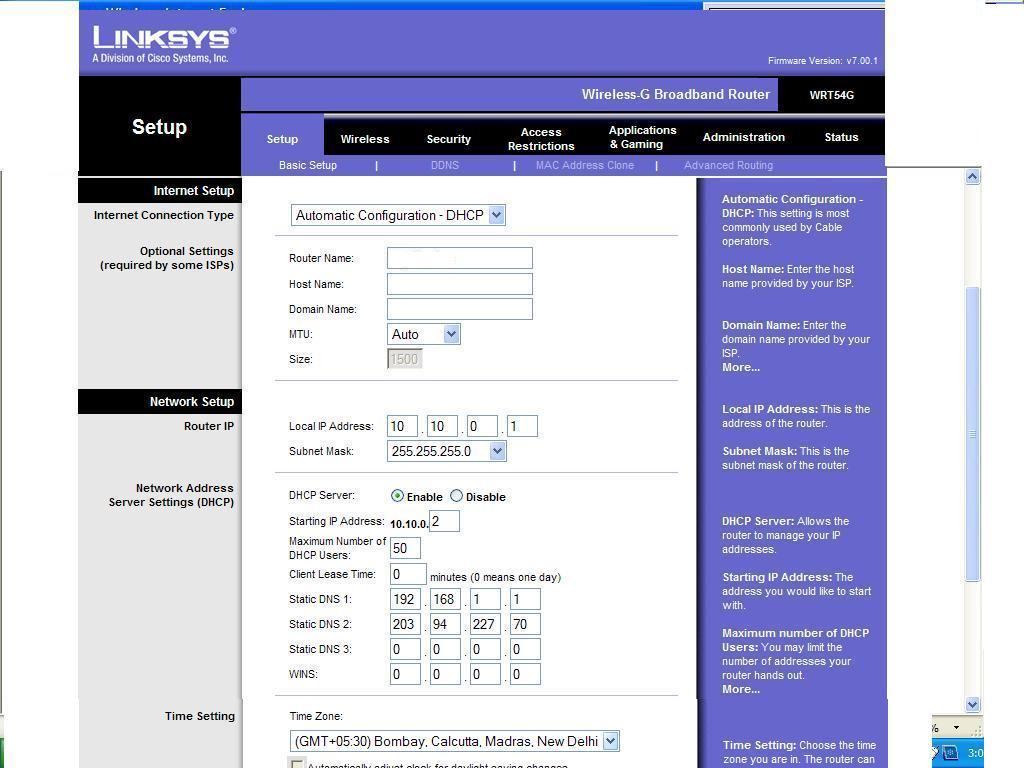
Open IE6/IE7 browser and type 192.168.1.1, a window will pop up & ask for username & password. Default username is blank & default password is ‘admin’ after which you will come to the screen as seen below


‘Internet Connection Type’ is by default ‘Automatic configuration DHCP’ leave it as it is J (I did not which caused me a lot of grief J )
In ‘Router Name’ enter a name of your choice.
Let MTU be ‘Auto’.
At ‘Local IP Address’ enter 10.10.0.1
‘Subnet Mask’ 255.255.255.0
‘DHCP’ is ‘enable’
‘Starting IP address’ leave it as it is, this will be changed later.
‘Static DNS 1’ 192.168.1.1
‘Static DNS 2’ 203.94.227.70
‘Time Zone’ change it to relevant location.
Click on the 'Save' button.
At this point you will loose contact with the wireless router thru the browser. Double click on the computer icon in your task bar & go to the ‘Support’ tab and see the IP taken automatically by the machine most probably 10.10.0.2. Now type 10.10.0.1 in the browser location bar to gain access on the config page of the router & change (see above) the ‘Starting IP address’ to 10.10.0.2. click on ‘Save’
Next click on the ‘Wireless’ tab give a name to your network also called SSID, remember all wireless machines on this network should have the same SSID ie network name & select what wireless network mode you need. If you have only laptops, which operate in the, 802.11g mode, (most new machines) then select ‘G Only’. Click on ‘Save Settings’.
Now switch on the D-Link 502T (the Linksys WRT 54G & Desktop are already switched on) and after the lights become steady, on the desktop click on ‘Start’ button -> ‘Run’ & type ping 192.168.1.1. If you get ‘timed out’ message, then there is some error, so go over all points above to see if you have missed anything. If you see a reply like the pic below all is well.

WiFi Security
You should be able to access the Internet on your desktop. Hurray So far so good, J remember that your network is still unsecured and we still have to configure the security settings etc.
You can now turn to your wireless PC or laptop to connect it to the wireless network. Here I am assuming your laptop has a built in WiFi card, if you are using an adaptor then follow the instructions of the adaptor maker. XP has a very user-friendly wireless networking utility. If you’re setting up a network for the first time, use the Windows Wireless Network Setup Wizard, in the Control Panel. This copies configuration info to a USB flash drive that you can insert into each additional PC or device. If you use Vista (like me) it’s just as easy going thru the Control Panel for first time users. After you have gone thru the setup wizard and it has recognized the network with the name you had previously given it, now you should be able to access the Internet.
Leave the laptop on for the time being and lets focus our attention on the router configuration thru the browser of the desktop.
Click on the ‘Wireless tab & then on ‘Wireless MAC filter’ (on how to find the MAC address of your wireless machine go to right to the bottom of this page) tab as seen below

Click on the ‘Enable button’ and on the ‘Permit button’ & click on the ‘Edit MAC filter list’ and add the MAC address also called ‘Physical address’
Click on ‘Save Settings’ in both windows.
Next click on the ‘Wireless’ tab -> ‘Wireless Security’ tab and select the appropriate settings (AES, TKIP or AES+TKIP) depending on what your laptop supports. Remember that WPA2 is considered the best as also AES+TKIP if your laptop supports it go for it. Select the same settings and password on your laptop. Click on ‘Save Settings’
In the ‘Security tab’ select 1, 2 & 4 check boxes.(See below). Click on ‘Save Settings’
At the ‘Administration’ tab -> Management change the routers password.


Also select the check box ‘HTTPS’. Click on ‘Save Settings’
After you have made all the relevant then go to the ‘Administration’ tab – ‘Config Management’ and take a back up of your settings. This can be done at a later stage too when you have made all the changes you need.PS Remember that now to access the router thru the browser the address is 10.10.0.1 and NOT the one you will find in the user guides (192.168.1.1). And to access the D-Link 502T thru browser you type 192.168.1.1. Happy surfing.The figure you see below is the DNS settings on my desktop & laptop and are relevant to MTNL

Finding the MAC Address and IP Address for Your Ethernet Adapter
Windows 2000 or XP
1. Click Start and Run. In the Open field, enter cmd. Press the Enter key or click the OK button.
2. At the command prompt, enter ipconfig /all. Then press the Enter key.
3. Write down the Physical Address as shown on your computer screen. It is the MAC address for your Ethernet adapter. This appears as a series of numbers and letters.
The MAC address/Physical Address is what you will use for MAC address cloning or MAC filtering. Note: The MAC address is also called the Physical Address.
Windows Vista
  1. Click Start -> Accessories -> Command prompt
  2. At the command prompt, enter ipconfig /all. Then press the Enter key.
Write down the Physical Address as shown on your computer screen.
For those who want their laptops & Desktops connected thru the Linksys WRT54G to share files/folders/drives check out http://socrates0.blogspot.com/2008/01/sharing-filesfolders-across-machines.html

For more info on WPA2 on Win XP check out

http://www.microsoft.com/windowsxp/using/networking/security/wireless.mspx

&
http://www.microsoft.com/windowsxp/using/security/expert/bowman_wirelesssecurity.mspx


Recently I came across two sites which generate random passwords

https://www.grc.com/passwords.htm

https://secure.pctools.com/guides/password/

The first is an online generator whereas the second is a s/w to be installed on your machine to do the needful. When you use a password 63 or 64 characters long copy paste it in your WiFi router then save the password in ‘Notepad’, then transfer this password to a pendrive & paste it in your laptops.

Friday, March 30, 2007

Hutch still makes me see red

In Feb 03, 2005 I had written a review (hence the title) on then Orange & now Hutch in Mumbai (see http://www.mouthshut.com/review/Orange-69311-1.html ) nothing seems to have changed till now. I am writing this to highlight what passes of as service to pre paid customers by Hutch (soon to be Vodafone, hopefully) in India, One of my family members got an SMS on Sat 24th Mar 2007 that she had to provide documents for proof of identity by 27th Mar 2007 or else services would be cut off. Both of us went to your Century Bazaar Hutch shop on Sun 25th Mar 07 and submitted the relevant form & documents, which was collected by Mr. Manish. I took a receipt for the same. Staff here also assured us that as the documents were received; the line would not be disconnected.

On 27th March 2007 another SMS was received stating that since her documents had not been received, her line would be disconnected & for further details she would have to contact 9833198331, which she did

First Call: & was told by Ms. Suman Pai who assured her that the line would not be cut & if by chance it was cut, (someone playing Russian roulette!!!) she was to ring the same number to ask them to reconnect. Later in the afternoon she got an SMS telling her that the connection was cut, as the documents had not reached them.

Second Call: She rang up 9833198331 again & a joker there had the cheek to tell her casually ‘to visit the Hutch shop again as there was a mismatch in the documents given.’ I don’t think these guys know police verification is done before a passport is issued). A photocopy of the passport was given as proof of identity.

Third Call: This time when she rang (on 9820098200) she was told by this person that they had located her documents & ‘everything is in order’ and her connection would be restored very soon. Then how did the previous person shoot of his mouth about mismatch in documents!!!

Even at 18:00hrs 27th March 2007 this was not done.

Fourth Call: When she rang up at 18:08 hrs the call was taken by a Mr. Richard & then transferred to Mr.Maddy from the document section, kept on hold for a very long time and then the call got disconnected (I presume it was an accident at their end!).

Fifth Call: At 19:39 hrs 27th March 2007 the call was taken by Mr. Tejinder and then transferred to the document section to Mr. Sajid. This time after keeping her on hold for some time she was told that her documents were in order and the line would be restored ‘tomorrow’. Then why wasn’t her connection restored in the afternoon when she was told so? It seems it takes Hutch less time to disconnect than to connect. THIS IS NOT CUSTOMER CARE BUT CUSTOMER HARRASSMENT.

What is shocking is the level of miscommunication and incompetence in this organization where the left hand does not know what the right hand is doing. Considering that Hutch had the full year (as per TRAI rules) in which to tell their customers to submit these papers, they tell a customer on 25th March 2007 & expect the document submission by the 27th March 2007. As if the customers have nothing else to do but run with photocopies to a Hutch shop at the drop of a hat. Inspite of this, the documents were submitted well before the deadline. To add insult to injury, Hutch disconnects her line after having sent an SMS on 24th and promising that she would get an additional talk time of Rs. 100/- !! I guess all this is happening because the deadline they have is 31st Mar ’07, hence the ‘headless chicken dance’.

This is the THIRD time we (all my family members) has submitted these documents. First, when the SIM card was purchased, second time to their Hutch shop (in those days at Stanrose House) a couple of years ago, and now this. What happened to the document copies, which we submitted then? I wish I had taken an acknowledgement then and noted down the number where the verification call was made from. I was too trusting then. Frankly, if we did not have such a high subscription balance to our credit we would have shifted to another service provider who hopefully knows how to preserve it’s records. This organization seems to have some sort of informal caste system where prepaid customer are treated like second class customers, they think all pre paid customers are plumbers, cobblers or other forms of low life (evident from their treatment)

Let me elucidate on this: last year when I went to your Hutch shop at Khar. The moment I said I want an annual subscription for my pre paid card I was brusquely told ‘go outside & do it” . Even on Sun 25th Mar 07 at Century Bazaar it was the same story. The forms were issued/collected in the corridor outside the Hutch shop by Mr Manish, who incidentally was late for his post. The watchman gave us the form J, who also tried to sell us a billing scheme. I think this security guy should be rewarded for showing some interest & initiative. I always use the annual subscription & I still have a hefty balance to my credit AND all this is in their kitty before I use the ‘service’.

My experience with their customer care, on 28th Mar ’07 thru 9820098200 takes the cake. When I tried to ring up Isaac D’souza at (Hutch Nodal Officer Tel as given on your website 66645000) as I had sent him an email today morning, this number was perennially engaged I spoke to customer care exec Avi Parmar who was not aware of this dept or their other contact numbers! (Do they work for the same company?)

Later, at 1122 hrs, when I called customer care to enquire why the line had not been restored, an exec by the name Steven Ali came on the line. When I told him that these documents were given at your Hutch shop at Century Bazaar, he had the gall to ask me ‘where is the Hutch shop located at Century Bazaar’. Was this person in his senses when he asked that question? I can understand the security angle if I was ringing up a bank regarding credit card problems but this was RIDICULOUS. Apparently Hutch staff in Mumbai are suffering from delusions of grandeur, thinking that we have time to waste ringing up customer care for tomfoolery! Not all your prepaid customers are college students either; many of us opt for pre paid as it’s convenient & also we don’t enough faith in the billing systems (to put it bluntly). I think their customer care executives should be trained to behave like professionals & not to speak like they do on their college campuses.

Another point I would like to highlight is that Hutch customer care seems to have a culture where they stonewall the customer when he wants to escalate the matter. That joker Mr Steven (mentioned above) would not call his supervisor when I asked for this. In 2003, (see previous review) when I had a problem with my annual renewal by sms, the staff at the Hutch shop (at Stanrose House in those days) would not call or give me the tel number or email id of their supervisor, where as at HDFC bank the manager immediately gave me her boss’s number & email-id who incidentally sorted out the matter on the same day (AND NOT HUTCH CUSTOMER CARE). Even today when I could not get through to Mr. D’souza. When I asked the telephone operator around 1146 hrs for Mr Asim Ghosh’s exec asst, the line was diverted to Mr Samar, who sorted out the problem in less than an hour (bless him for that) but even he would not give his email id as I wanted to give my feedback about my experience on this issue. He asked me to send my feedback to assist@hutch.in. Frankly I do not have faith in this email-id any more, especially after my past experiences. What always stands out is the ‘couldn’t care less attitude’ or childish attitude of the customer care dept.

In the service industry one thing has always been clear. That is, every customer may accept a mistake as long as there are no lies, arrogance or hints of cover up provided the mistake is admitted to and rectified immediately. In this entire episode over the last two days no one admitted there has been a mistake on the part of Hutch in showing indecent haste in disabling out going sms/calls, when the documents were already in their custody. Only Mr Samar was like a ray of light in all these clouds of incompetence and got things sorted out with out any fuss.

I had sent my feedback on in the past (20-12-06) of my experiences at the Hutch shop at Century Bazaar when I had gone to submit my papers, I only got platitudes. I hope in future I (or any other customer) don’t have to interact with the likes of Mr Steven Ali. Incidentally I did not get the sms after interacting with him asking for my feedback J !!! At 1925 on 28th Mar 2007 some one called Apurva (from Isaac D’souza’s office - his words, not mine) spoke to my family member saying that all this happened because of a technical problem. That’s the closest they get to apologizing J
This not a technical problem but a systemic one. If a few papers don’t reach the person who should read it before authorizing disconnection of services to a customer, it is not technical but systemic. This same person called me up on 29th Mar ‘07 with the same reasons & platitudes & I explained to him exactly what I have mentioned above about systemic faults, he actually told me they give ‘at least 48 hrs before they cut a line’ to which I highlighted to him the sequence of events and the time line, (he had actually told me that he had gone thru my email v carefully) to show they were way of their schedule and were very thoughtless, arbitrary & negligent.
Whatever this guy uttered did not even stand the test of time as within 3 hours of him giving that spiel I got to hear that many Hutch subscribers have had their connection cut even though they have given their documents well in the time allotted. So whatever this ‘gentleman’ told were all lies and not only is the problem systemic, it’s also VERY widespread. Not only that my family member received NINE sms stating that they would revert back soon for the email sent to them. I suppose this is also a ‘technical problem’ or maybe even out of spite !!!!! For those of you who are frustrated by their help disk, I suggest you check out these url’s, http://www.hutch.in/contactus/nodal.asp or http://www.hutch.in/contactus/appellate.asp or http://www.hutch.in/contactus/contactus_mum.asp & also a cc to TRAI at trai@del2.vsnl.net.in so that they are aware of the (QOS) Quality Of Service meted out to hapless customers. Using the toll free numbers to speak to their helpdesk ‘can be injurious to one’s health’; if you don’t have BP problems you might end up with one. This is not an exaggeration as I am suffering from severe headache for 2 days after interacting with people mentioned above :)

I hope someone will take some corrective measures to stop this customer harassment & that soon with a new name, livery, logo etc the customer will also get unbiased better quality service, or is that hoping for the impossible.

Saturday, March 24, 2007

My Experience with the Nokia 6233

Recently a family member decided to change his phone and I was requested to shortlist a few phones which had the following features

  • No flip or slider phone
  • Decent amount of internal memory
  • 2 MP camera w or w/o auto focus
  • Blue tooth
  • Cable connectivity to computer
  • A good screen with at least 65k colours
  • FM radio
  • Decent music capability
  • At least 500 phone book capacity, which allows multiple entries per contact

With these points in mind I short-listed the Sony Ericsson W810i & Nokia N72. but I thought the N72 was a bit bulky for my relative & so we went to buy the phone. But when we went to the dealer (most of our phones have been bought from this guy as he gives us a good overall deal), he suggested the new (at that time) Nokia 6233. I was not impressed, as this phone had just been introduced in the market then, he gave me many reasons why not to opt for the W810i (in spite of it being more expensive). We gave in to his pleading of ‘at least have a look at it’.

We did and the rest is now history as my relative was quite impressed but it s looks as well as its price J. Frankly I was quite nervous of, according to me ‘an unknown entity’; especially after my bro’s experience with the Nokia 6230i (another review here). I didn’t even know how much internal memory it had (more on that later). Anyway the deal was done the old Nokia 6610 went out for 2k and in came the 6233. its been a few months now so I can safely say that its been safely tested n our hands. I won’t bore you with the specs as that can be had @ their web site.

At first looks it looks very impressive as it quite slim (as compared to the N series), has a stainless frame & an overall black look (this piece). This phone is very handy in operation, especially b’coz of its keypad. The buttons in the side vertical rows stick out slightly; all keys have very soft click and great feel to it. The usual (I say this as I have owned a 5110 & 3100 in the past) four-way navigation key and the “OK” button inside it are also very easy to manage.

It uses currently S40 3rd edition operating system.

Flight Mode. This was a new feature for me & was taken in by it, The phone part can be turned off in case you are in a plane or wherever mobile phones are prohibited, imagine having the phone in the off mode and @ the same time listening to the music or radio thru the phone. Can be useful sometimes.

Calls list. Pressing the call key brings up the list of dialed numbers only. But, requires not only making, but also receiving calls. I frequently need to call back people, whose calls I’ve missed – when there are more than two of them, it’s impossible to do that without having to peek in the calls record. To access to general list, you will need to perform at least 3-4 actions, and this is pretty much inconvenient.

BlueTooth-devices searching. The handset is always searching for new devices located nearby; you can’t pick a device residing in the list of already paired ones, and thus end up by having to spend a bit more time.

Incoming messages. The display doesn’t offer the information on sender – only amount of messages (e.g you have one unread message),

Phonebook has only 500 entries to fill, but other standard for all business solutions made by Nokia was 1000 entries (like the 6230i which is an older vintage)this could be b’coz it does not have enough internal memory and firmware in spite of being a of 3G phones.

Themes. There are few themes preinstalled, they are all-standard and do not offer main menu’s icon customization, It is easy to download new themes, which are a lot more colorful and interesting than standard ones. But be warned if the themes are too big it will slow the phone down drastically to the extent u might get a white screen for a long time enough to scare u to think it has hung. Again b’coz of the piddly amount of memory. I really find this shocking as the older 6230i has 64 MB internal memory. If you want to download themes for free or share it with others check out http://www11.ownskin.com/index . This site has a good collection for Nokia & Sony Ericsson phones.

Voice dialing. Tags automatically get assigned to contacts in the phonebook, without having to train before

Copy & Move files is a very primitive operation as u cannot move/copy files to sub folders.

Camera. This handset has 2mpx camera (CMOS) with 8x digital zoom is built-in, which is not much by today’s standards, but it is still pretty enough for a middle class model. But in dark conditions, exposure time increases and every movement your hand makes within that time leads to blurry image in the end. It has no flash like my K750i. There is 8x digital zoom, but there is no reason to use it as it will only ruin ur photo. You can save photos on both memory card and internal memory. I suggest u save it on the memory card which is a micro SD card. Some effects can be applied to already made photos like Greyscale, Sepia, Negative are available. There is auto-timer for self-shots. Overall, the images taken by the 6233 were of decent quality. The lack of an auto focus mechanism really made a negative impact on the image quality,

Video. Handset allows recording video in 3GP format, you can limit recording’s length, but it also can be limitless, until memory runs out (of memory card or internal memory).

Sound I was impressed by the presence of side stereo-speakers, whose grills are positioned more towards the upper end of the handset. The sound quality is awesome but (according to me) the ring tones sound good, purer, but quieter, but you will hear the phone ring (64-tone polyphonic) even in a ladies hand bag (tested) J. For music this handset is very acceptable, however it is weaker than Walkman-phones in terms of interface convenience, detailed adjustments, but in terms of sound quality it is as good, and when we’re speaking about loudspeaker mode – stereo speakers play their role in that.

Music Player is the very simple to use. It allows you to create track lists and also comes with an equalizer with five preset modes - normal, pop, rock, jazz, and classical. There is an option to personalize two sets of equalizer settings. If you want to listen to music with your own headphones, you will have to purchase the Nokia headphone adaptor, as it isn't included in the sales package. The music player is able to run in the background, enabling you to access other functions on the handset while enjoying music.

Radio The phone comes with Visual Radio player, which takes advantage of a GPRS/EDGE/WCDMA data connection to download information from participating radio stations around the world, providing the user with visual and textual information on the artist and song that is playing over the FM radio. Currently I think this facility is available with only 1 FM station. Can’t recollect which one.

SMS The SMS system works well. There is an option to access a list of recently messaged contacts, which allows fast access to commonly used recipients. This is especially useful when you only SMS a few people from a long list of contacts.

This is supposed to be a 3 G phone but its internal memory is a pathetic 6MB, which is a real shame. Considering its older avatar 6230i had 64 MB! It has a slot for a micro SD card which can take up to 1 GB (64 MB card comes with the box), I find it very difficult to get the card out due to its miniscule proportions. The 6233 claims to have video calling function. But it has only one camera. Another interesting feature I see on this phone is a list of upcoming calendar appointments, can be displayed on the standby screen. This is called Active Standby. You can personalize the active standby screen by organizing how you want it to be displayed. For example, you can set the line of icons to appear at the bottom of the screen instead of the top. A good feature of the S40's Active Standby is the ability to set shortcuts to the left and right directions of the center-pad. If you do not like the Active Standby feature, you can always turn it off in the Settings menu. With it turned off, you can press on the four different directions of the center -pad to launch different applications. The directional shortcuts can be customized to your liking, as can the left and right soft keys.

Battery life was average. The phone lasted about three days before being recharged. This was with around 30 minutes of calls each day and quite a lot of SMS messaging, taking pictures, and GPRS usage. Using Bluetooth frequently brought that duration down drastically. The phone also has support for USB 2.0 via the Pop-Port connector. This results in fast synchronization of data between phone & PC. Overall a good phone except for my previous gripe of grossly inadequate internal memory by today’s standards. Incidentally this is a common feature of many of the newly introduced Nokia models of late. Lower prices come with lower memory! Some may try to rationalize that having a memory slot with upto 1 GB capacity should be enough. True for many situations, but not if you want to say add pictures to your contacts (even video is allowed !!!) this can be stored only in the phone memory. Even having large files as themes can cause your phone to slow down or even hang. So if you want a phone with large capacity internal memory go for 6230i, the E series (eg: E50 is currently cheaper than 6233) or the N series, or look @ Sony Ericsson phones.